

Multi-Location Display Management NZ: CMS Guide for Stores
A chain with six shopfronts and one head office should not need six separate logins to change a promotion. Yet many window display networks still run that way. Someone drives to a store, plugs in a USB stick, and hopes the screen restarts properly. For real estate agencies, cafés and retailers in New Zealand, multi-location display management NZ comes down to one question: can you update every window from one place, on schedule, without a site visit? A content management system (CMS) answers that question. This guide explains how to set one up across several stores, how to organise content by location, and where teams usually go wrong.
Table of Contents
- Quick Takeaways
- Why multi-location window displays break down
- Setting up a central CMS for every store
- Structuring content by location and group
- Scheduling and automation across stores
- Connectivity, hardware and screen reliability
- CRM and CMS integration for property and retail teams
- Comparing management approaches
- Governance, permissions and rollout steps
- Frequently Asked Questions
- References
Quick Takeaways
| Key Insight | Explanation |
|---|---|
| Run every screen under one CMS account | Each store should be a device inside the same account, not a separate system with its own password and its own forgotten update routine. |
| Group screens by location and format | Tag screens by store, window size and orientation so a promotion can reach every Auckland display without touching the Dunedin ones. |
| Schedule by time block, not manual edits | Set opening-hour, weekend and after-hours playlists in advance so the window changes without anyone on site. |
| Test connectivity before you roll out | A stable WiFi link at the actual window position matters more than any feature list. |
| Limit who can publish | Give store staff playback control, and keep template, pricing and branding edits with head office. |
| Pilot one store for two weeks | Catch offline devices, cropping errors and slow uploads on one site before you deploy the rest of the network. |
Why multi-location window displays break down
Most window display networks fail for ordinary reasons. The first store works well, the second store gets a screen set up under a different account, and by the third location nobody is sure which content is live. The problem is rarely the hardware. It is the lack of a single source of truth for what should be showing, where, and when.
The manual update trap
When each screen is updated by hand, the real cost is not the ten minutes spent on each change. The cost is drift. One store runs last month’s offer, another has a typo in a price, and a third still shows an open home that finished last Sunday. Customers notice these mistakes faster than staff do, and a window with an out-of-date message damages trust more than a blank one.
Manual updates also make small changes expensive. A new café special or a listing price change should take a minute, not a site visit to every shop. If a change needs a trip, it tends to wait until the next scheduled visit, and by then the message is stale.
What a CMS changes in practice
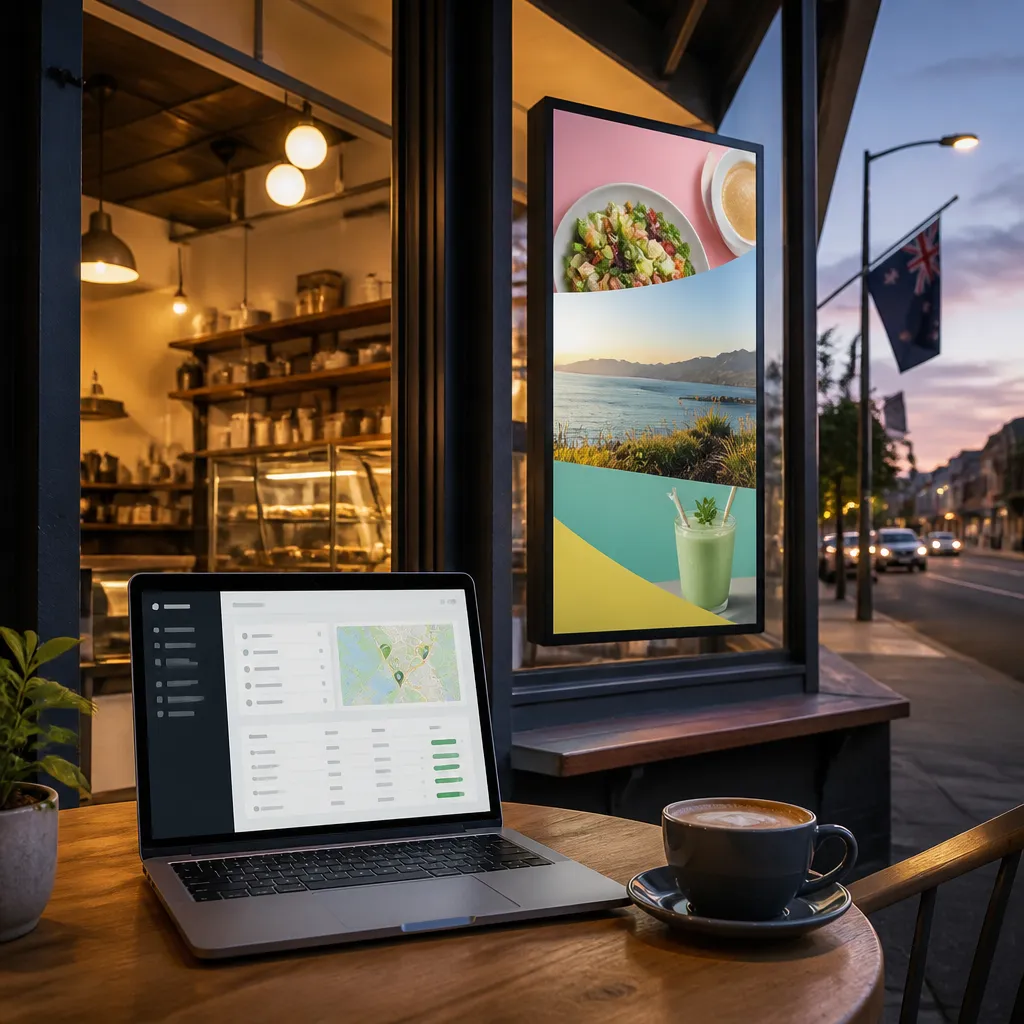
A CMS moves the publishing step to a single dashboard. Content is uploaded once, assigned to one or more screens, and pushed to devices over the internet. Remote content management via WiFi means a head office manager can change a window in Hamilton from a desk in Wellington, and a store manager can see exactly what is playing without touching the hardware.
The gain is not just speed. When every screen reports to one system, you can see which devices are online, which playlists have run, and which locations have been missing updates for a week. That visibility is what turns a pile of screens into a managed network.
Pro tip: Before you configure anything, write down three numbers: the count of screens, the count of locations, and the count of people who need to publish. Those figures decide whether you need a simple remote dashboard or a full structure of location groups with separate permissions.
Setting up a central CMS for every store
Setup decides whether your network stays manageable at ten screens or collapses at thirty. The principle is simple: one account owner, one naming convention, and one registration process that every new screen goes through. Skipping any of these creates problems that compound later.
Start by choosing a cloud-based platform with a clear admin structure. Confirm that the platform supports multiple locations under one login, that you can add users with different permission levels, and that device registration works without a technician visiting each site. If a vendor cannot show you this in a live dashboard, treat that as a warning sign.
Naming screens so they can be found later
Name every screen with a pattern that includes the location and the position, such as “AKL-Queen-Window-Left” or “DUN-Office-Front-LCD”. Avoid names like “Screen 2” or “Front window”, because those names look fine during setup and become useless when you manage twenty devices across several towns. A consistent name also makes it easier to search for a device when a store reports a problem.
Record the physical details alongside the name. Note the screen size, whether it is a hanging cable LCD or an LED backlit unit, and the orientation. When you later need to swap a display, that record saves an afternoon of guessing which content format it needs.
Registering each player and confirming it is online
Each media player should be registered on site, then checked in the dashboard before anyone uploads content. Confirm the device shows as online, that the time and time zone are correct, and that a test playlist plays from start to finish. A device that appears online but never completes a playlist usually has a network or storage issue, and you want to find that before the store opens.
Structuring content by location and group
Content structure is where most multi-store networks either become elegant or turn into a mess. The aim is to separate what is the same everywhere from what is specific to one site. Brand colours, legal wording and core menu items should live in a master template. Local offers, staff names and opening hours should be local overrides.
In practice, build the master template first and lock it. Only the brand team or head office should edit it. Store-level content then fills defined slots, such as a headline area or a footer strip, so a store cannot accidentally break the layout by resizing a logo or moving text off the window.
Building a master template that stores cannot break
A good template has fixed zones for the logo, the main message, the price or offer panel, and a small legal line where needed. Design it at the exact pixel dimensions of the window screens, not at a generic widescreen size. A banner that looks sharp on a laptop can crop badly on a tall shopfront LCD, and a template built for one orientation rarely works on another.
Test the template on every screen format in your network. If you run both landscape and portrait windows, you need two versions of the master template, both approved by head office. This is a one-time job that prevents dozens of cropping complaints later.
Local swaps for suburb-level offers
Local content is where the window earns its keep. A real estate office in Christchurch needs different listings from one in Tauranga, and a café in Auckland may run a breakfast deal that a Dunedin branch does not offer. Create a group for each market, then assign content to that group rather than to individual screens.
Group-based assignment saves time when things change. If a suburb offer runs across five screens in one region, you change the playlist once, and every screen in that group picks it up. Individual assignment works for one-off exceptions, but it is a poor default for a network of any size.
Scheduling and automation across stores
Scheduling is where a CMS saves the most staff time. Instead of changing content during the day, you set a calendar of playlists that switch automatically. A store can open to a welcome message, run its featured offers during trading hours, and show a different message after close without anyone touching a device.

Time-based playlists for trading hours and weekends
Set up at least three playlist windows: trading hours, after hours, and weekends or public holidays. A retailer might run product promotions during the day and a brand message overnight, when the window is visible to pedestrians but nobody is in the shop. Cafés often need a breakfast menu in the morning and a lunch or afternoon menu later, which is a simple schedule but easy to forget if it depends on a person.
Check how the platform handles time zones and daylight saving changes before you rely on it. Test a schedule that crosses a switch-over point, because that is where automated playlists sometimes run an hour early or late without anyone noticing until a customer does.
Event-triggered updates for open homes and promotions
Real estate agencies gain the most from event-based updates. An open home listing should appear in the window on the day of the event, then come off the screen the moment the event closes. Build a standard process where the listing manager adds the property to a playlist with a start and end time, rather than relying on someone to remember to take it down.
Retailers can use the same pattern for limited-time promotions. Set the start and end dates when you create the campaign, then review the schedule at the start of each week. A short expiry date on every promotional asset prevents the most common mistake in window marketing, which is an expired discount still running a fortnight later.
The best schedule is the one that still runs correctly when nobody from head office is in the building.
Connectivity, hardware and screen reliability
A CMS cannot fix a screen that loses its connection or cannot be read in daylight. Before rollout, treat connectivity and visibility as part of the software project, not as a separate facilities task. Most field problems in shopfront networks come from these two areas.
Shopfront windows face harsh conditions. Direct sun, reflections from the street and temperature changes all affect how a display looks. Choose screens that are built for the environment, such as sunlight-readable units or UV-protected LCD displays for windows that take strong afternoon light.
Checking WiFi at the window, not at the back office
Many installers test signal strength near the router, then install the screen at the front of a store where the connection is weaker. Test the actual device position with the same WiFi network it will use in service. Look for a stable connection over at least a full trading day, because peak hours often bring more interference from customer devices and nearby networks.
Pro tip: Run a short upload test on the real window position before you finalise the mounting. If a 50 MB video takes a long time or fails, switch to optimised files or a wired connection before the store goes live.
Choosing displays for sunlight and daily use
LED backlit real estate displays are designed for constant advertising, with long life expectancy and high brightness for daytime visibility. For many agencies and retailers, that makes them a better fit than a standard indoor monitor. Hanging cable LCD displays suit narrow windows or spaces where a wall mount does not fit, while larger LCD screens work well for wide frontages.
Mount height, glare and cable routing matter as much as the screen itself. A display mounted too low gets blocked by stock or passers-by, and a poorly placed cable creates a trip hazard or a damaged connection. Record these details on the site survey, so a replacement unit goes into the same position without a second visit.
CRM and CMS integration for property and retail teams
For many commercial users, the real value of a window display network comes from connecting it to the systems they already use. A property team that updates listings in a CRM should not also have to recreate those listings in a display tool. Integration reduces duplicate work and removes the risk of the window showing a property that was sold last week.
V Media includes CRM and CMS integration in its software subscriptions, which is why it helps to plan the data flow before you choose your content templates. The integration only works well if your source data is clean, so decide which system is the master record first.
Pushing listings and offers from your CRM
Map the fields you need, such as address, price, photo, open home time and agent name, to the template slots on the screen. Keep the mapping simple. Every extra field is one more thing that can break when someone changes a label in the CRM. Test a listing from draft to live, then from live to removed, before you trust the automation.
Agencies should set a rule that a listing is removed from every window when its status changes to sold or withdrawn. Without that rule, the window becomes a record of old sales, and the team spends time chasing screens to remove them manually.
Keeping product and price data consistent
Retailers face a similar problem with product prices. A price changed in the point-of-sale system should not stay wrong in the window for three days. Where full integration is not practical, use a single approved content sheet that head office updates weekly, then imports into the CMS for all stores at once.
Whatever method you choose, assign one person to own the data. Shared ownership usually means nobody owns it, and a shopfront showing an outdated price is a compliance risk as well as a poor customer experience.
Comparing management approaches
Three common approaches appear in New Zealand retail and property networks. Each one can work at a small scale, but they behave very differently once you run a dozen or more screens across several towns. The table below sets out where each one fits and where it breaks.
| Approach | Best for | Main weakness |
|---|---|---|
| Manual updates through USB or per-screen logins | One or two screens at a single site with rare changes | Drift between stores, slow corrections and no visibility into which screens are live |
| Central cloud CMS with location groups and scheduled playlists | Multi-store retailers, agency networks and cafés with regular offers | Needs a clear naming system, permission structure and a pilot before rollout |
| Central CMS with local overrides and CRM integration | Property groups and retailers with live inventory or pricing data | Depends on clean source data, and integration setup takes longer than a standard rollout |
In practice, most teams should start with the central cloud approach and add CRM integration once their data is reliable. Trying to integrate a messy data set on day one only automates the errors.
Governance, permissions and rollout steps
The technical setup is the easy part. Governance decides whether the network stays accurate after the first month. Without clear rules on who can publish, what needs approval and how problems are reported, even a well-built CMS drifts back to manual chaos.
Write a one-page publishing policy. It should say who creates content, who approves it, which templates are locked, and how quickly an expired or incorrect message must be removed. Keep it short enough that store managers will actually read it.
Setting permissions by role
Give head office full admin rights, marketing staff publishing rights for campaigns, and store staff playback or limited edit rights for local content only. Store staff should not be able to change the master template, delete locations or add new users. These controls prevent accidental changes and make it clear who to call when something looks wrong.
Review user accounts every quarter. Staff leave, agencies change agents and franchise managers move on, and old accounts with publishing rights are a quiet security risk.
Running a two-week pilot before wider rollout
Choose one store or one agency office as a pilot. Run it for two weeks with real content, real schedules and real staff. Track offline events, cropping problems, upload delays and any content that went live at the wrong time. Fix those issues in the template and the process before you deploy to the rest of the network.
Once the pilot runs cleanly, roll out in groups rather than all at once. Deploy one city or one region at a time, so you can support each batch properly. A staged rollout also gives you a clear point to stop and correct if something goes wrong.
Pro tip: Keep a simple change log with the date, location, content owner and reason for each major update. When a screen shows the wrong message, that log tells you within minutes whether the error came from the template, the schedule or a manual override.
Frequently Asked Questions
How many screens can one CMS account manage across different cities?
The practical limit depends on the platform, your plan and how you group screens, so confirm the current capacity directly with the provider before you commit. For most multi-store networks, the bigger challenge is structure rather than raw count. Good location groups and clear naming matter more than the number of devices.
Can store staff update the window without head office approval?
They can, if you set it up that way, but it is usually better to limit them to local content within approved templates. Store staff can handle playback and small local changes, while head office controls branding, pricing and the master layout. This keeps local flexibility without letting the window drift off brand.
What happens if a screen loses its internet connection?
Most cloud-managed players can keep showing the last synced playlist for a period, but this varies by device and platform. Check how your chosen system behaves when it goes offline, and set up alerts so someone knows within a few hours rather than the next time a manager walks past the shop.
Do I need a CRM integration to manage listings effectively?
No, but it saves a lot of duplicate work once you have more than a handful of listings. Without integration, a designated person must add, update and remove each listing manually across every screen. That works for a small agency, but it becomes unreliable as volume grows.
How long should a rollout across several stores take?
A realistic plan includes a two-week pilot, then staged deployment by region. The exact timeline depends on how many sites you have, how ready your network is and how quickly your content is approved. Rushing the pilot is the most common reason rollouts need costly fixes later.
Tell us in the comments which step caused the most trouble in your own multi-store rollout, and how you fixed it.