

Remote Content Management for Window Displays in NZ
Every time a café changes its lunch special or a property agency swaps a listing photo, someone has to get the new artwork into the window. In many New Zealand shops that job still means a designer, a reprint, a courier, a ladder and a staff member standing on the footpath. A remote content management display setup removes most of that work. Content goes from a laptop or phone to a WiFi-connected screen in the window, usually within minutes, and nobody has to unlock the shopfront. This guide explains how the system works, where the time actually goes, and how to set it up so it saves hours rather than creating a new admin task.
Table of Contents
- Quick Takeaways
- How Remote Content Management Works on a Shopfront Screen
- Where Window Display Updates Lose Time
- CMS Integration With Your Existing Tools
- Sunlight, Power and Reliability for Shopfront Screens
- Remote Management Approaches Compared
- Setting Up Content Workflows Staff Will Actually Use
- Common Mistakes With WiFi-Connected Window Screens
- Frequently Asked Questions
- References
Quick Takeaways
| Key Insight | Explanation |
|---|---|
| Remote updates replace physical reprints | Changing a promotion over WiFi takes minutes, while a reprinted poster needs design, printing, delivery and fitting time before it goes up. |
| Schedule content before it goes live | Set lunch specials, open homes and weekend sales to start and stop automatically so the screen never shows last week’s offer. |
| Test the WiFi signal at the screen, not the router | Check connection strength at the exact mounting point, because a screen at the front of a shop is often far from the router in the back office. |
| Confirm CMS and CRM integration before you subscribe | If listings or offers already live in a CRM or spreadsheet, a connected system avoids retyping the same details onto the screen. |
| Name one person to approve every change | A single approver catches wrong prices, typos and expired offers before they reach the glass. |
| Check sunlight readability before buying | A remote system is wasted if the screen washes out at midday, so test brightness against the window’s real afternoon sun. |
How Remote Content Management Works on a Shopfront Screen
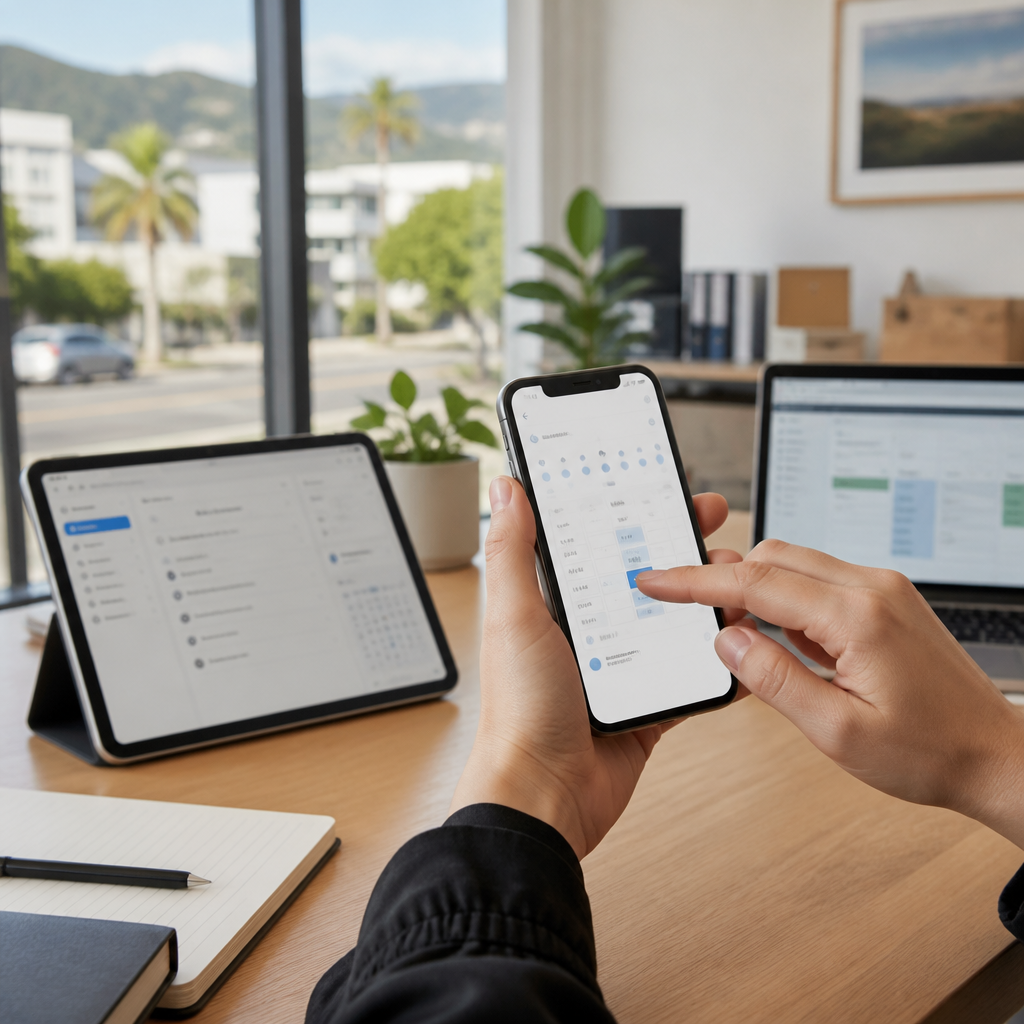
A remote content management system has two parts: a player inside the screen that connects to your WiFi, and a web-based dashboard where you upload, schedule and publish content. Once the display is installed, you rarely need to touch it. The dashboard can run on an office computer or a phone, which is why a property manager can push a new open home slide from a car park between viewings.
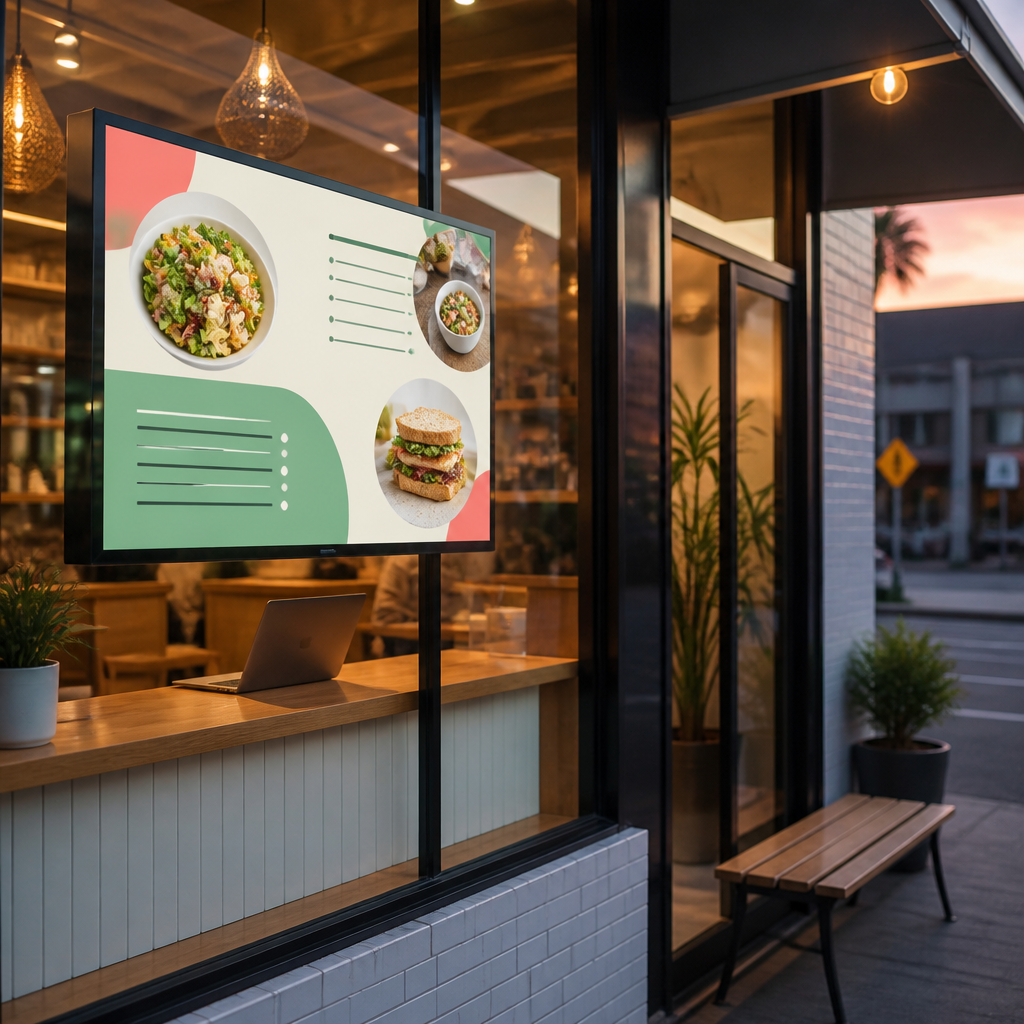
What actually travels over the WiFi link
Most of the data is small. A promotional image, a short looping clip or a text panel is uploaded once, and the screen pulls it down and stores it locally. That local storage matters, because the display keeps playing its current schedule even if the connection drops for an hour. In practice, the WiFi link is needed to change content, not to keep the screen running.
Scheduling is where most of the time saving sits. You can set a lunch menu to run from 11am to 2pm on weekdays, then switch to a dinner offer at 4pm, without anyone standing in the window. Android-based scheduling and automation apply these rules on the device, so a missed click at closing time does not leave the wrong offer up overnight.
Who gets access and what they can change
Give each person a role that matches their job. The owner or marketing lead can publish and manage the full schedule. A part-time staff member might only upload to a pre-approved template. Limiting permissions is cheap insurance, because a shift worker who accidentally deletes the open home playlist can cost an agency a day of enquiries. Access control is the part most businesses skip, and it is also the part that prevents the most damage.
Where Window Display Updates Lose Time
Before you can measure the saving, you need to know where the hours go. For a shop with a printed window poster, a single change usually involves briefing a designer, waiting for proofs, printing, arranging delivery and then someone fitting the new piece. Even a simple price update can take most of a week, and during that week the old price stays in the glass.
Printing and couriering new artwork
Print-based windows are quick to set up and cheap per poster, which is why they remain popular. The trouble is that every change is a new purchase. A café running three weekly specials pays for three rounds of printing and handling, before counting the design hours. Premium backlit printing paper still has a place for stable, long-running messages, but it is a poor fit for anything that changes every week.
Staff trips to the window
The hidden cost is labour. Someone has to unlock the door, step outside, swap the content, check the display from the footpath and sign it off. In a busy café, that small job tends to land at the worst moment, usually during the lunch rush. A remote system turns the same job into a few clicks from the kitchen bench, and the staff member stays on the floor where they are needed.
Promotions that run past their end date
In practice, expired content is the most common failure in window display. A competition closes, an open home is cancelled or a sale ends, and the screen keeps promoting it for another fortnight because nobody was assigned to remove it. Scheduled end times fix this automatically. The rule is simple: every item should have a start date and an end date before it is uploaded, not after someone notices the problem.
CMS Integration With Your Existing Tools
A display that updates over WiFi is useful. A display that draws its information from the systems you already use is better. Property agencies keep listings in a CRM, and cafés keep menus and offers in a spreadsheet or point-of-sale system. When those details have to be retyped onto the screen, errors creep in and much of the time saving disappears.
Linking listings and offers to the screen
Content management system integration means the display pulls from a source you already maintain. At V Media, CRM and CMS integration is included within the software subscription, so the connection is part of the package rather than a separate development project. For an agency, that means a listing updated in the CRM can feed the window without a second data entry step. The practical benefit is fewer mismatches between the price on the screen and the price on the website.
What to ask before you commit to a subscription
Ask three questions before you sign. Does the integration work with the systems you already use, or will you need a developer? Who owns the content data if you leave? And how many screens does the plan cover before adding another one becomes expensive? Vague answers to any of these usually mean the integration will take more effort than the sales conversation suggests. Get the specifics in writing.
Sunlight, Power and Reliability for Shopfront Screens
Remote management is wasted if nobody can read the screen. A shopfront display competes with direct sun, reflections from the street and the glare of passing headlights at night. A screen that looks sharp in a showroom can wash out completely in a window that takes afternoon sun. Sunlight readability is a purchase decision first and a software feature second.
Why sunlight readability decides the purchase
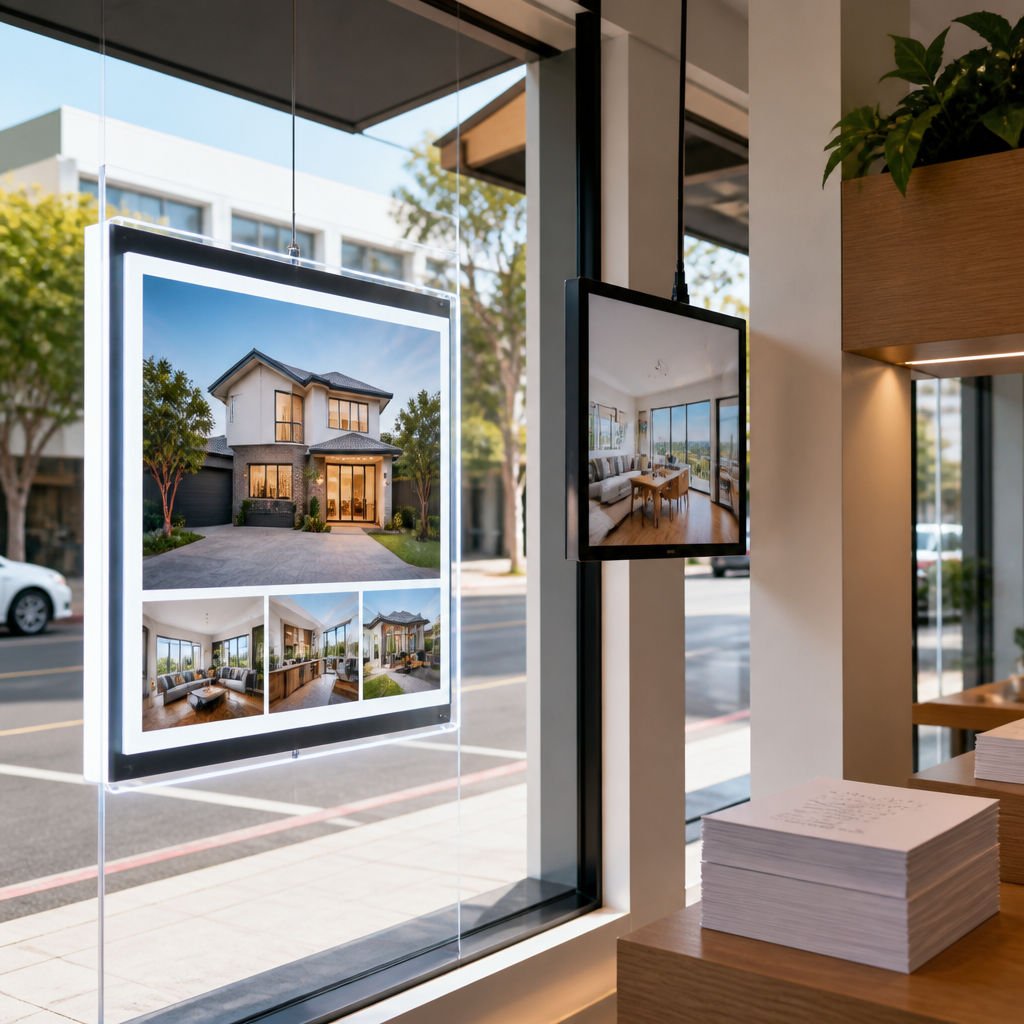
Screen brightness is the first specification to check and the one most often glossed over. Ask the supplier for the brightness rating, then test the screen at the time of day when your window gets the most direct sun. UV-protected LCD screens also matter for panel life in a window that takes full sun for hours. An LED backlit real estate display is built for 24/7 operation, which suits agencies that want their listings visible at every hour.
Planning for a dropped WiFi connection
Every WiFi-connected screen needs a fallback plan. If the router restarts or the building’s internet fails, the display should keep showing its last valid schedule rather than going blank or showing an error message. Check this during setup by switching off the router for ten minutes and watching what the screen does. A sound setup also includes a default playlist, such as a brand message or your opening hours, that runs whenever nothing else is scheduled.
Remote Management Approaches Compared
Not every business needs the same setup. The right method depends on how often the content changes, how many screens you run and whether one person or a team manages them. The table below compares the three approaches most window display buyers consider.
| Approach | Best For | Main Drawback |
|---|---|---|
| Manual USB or local file updates | A single screen with content that rarely changes | Someone has to visit the shop every time the content changes |
| Cloud CMS over WiFi with scheduling | Multi-screen cafés, restaurants and agencies with frequent listing changes | Depends on a stable WiFi link and a named content owner |
| Printed paper swaps in a fixed frame | Stable brand messages and long-running static signage | Every change costs design, print, delivery and handling time |
Matching the method to your change rate
My view is straightforward. If the content changes more than once a month, a cloud CMS over WiFi pays for itself quickly through saved labour and fewer reprints. If a message stays in the window for a whole season, printed paper is still the cheaper option. Most businesses with several sites end up using both, with the screens handling time-sensitive offers and the printed paper carrying the lasting brand message.
Setting Up Content Workflows Staff Will Actually Use
The technology is the easy part. The harder job is getting the people who write offers to publish them on time. A workflow that depends on memory tends to fail within a month. A workflow built on templates, a calendar and one named approver is far more likely to hold.
Naming, templates and a content calendar
Create a template for each content type: a daily special, a new listing, a competition, a holiday closure. Each template should have a fixed layout, text sized to read from the footpath and a required end date field. Keep a simple calendar, even a shared spreadsheet, showing what goes live on each day. That calendar is your check against conflicting offers running at the same time.
One approver, one publish time
Assign one person to approve every change, even if several people can upload. Approval catches typos, wrong prices and out-of-date phone numbers before they reach the glass. Set a fixed publish time for routine updates, such as Monday morning before opening, so the screen is not changed in the middle of a busy trading period.
Pro tip: Save a fallback playlist with your opening hours and a general brand message, and set it as the default. When a campaign ends and nobody has scheduled the next item, the screen still looks intentional rather than showing a stale offer.
Common Mistakes With WiFi-Connected Window Screens
Most problems come from setup decisions made in the first week, not from the hardware itself. The screen is installed, the first few updates go smoothly, and then a habit forms that causes trouble months later. Three mistakes come up repeatedly.
Relying on one weak access point
Placing a screen at the far end of a shop with the router in the back office invites dropped updates. Test the signal at the exact mounting point before installation, and if it is weak, add an access point or move the router. Remote management only saves time when the content actually arrives.
Letting expired offers sit on the glass
An expired offer damages customer trust faster than an empty screen does. Set an end date for every item and review the schedule weekly. A five-minute check every Monday prevents most of the embarrassing cases.
Buying a platform you cannot export from
Before you commit, confirm you can download your content library and schedule history. If you change provider or the platform changes its terms, you should not lose the artwork you paid to produce.
A screen is only as current as the person responsible for its schedule, so assign that responsibility with the same care you would give a bank account.
Pro tip: Run a test update every quarter. Change one item, confirm it appears on the screen within your expected window, then check that the old item was removed. Doing this in a quiet period finds problems before a key promotion depends on the system.
Frequently Asked Questions
Can I change window display content from my phone?
Yes, most cloud-based systems let you upload, schedule and publish from a phone or tablet as well as a computer. Check that the dashboard works properly on mobile before you buy, because some older tools only work well from a desktop browser.
Does the screen need a constant internet connection?
No. A properly set up screen stores its schedule and content locally, so it keeps playing during a short outage. The connection is needed to push new content, which is why the fallback playlist matters.
Do I need technical skills to manage the content?
Not usually. Day-to-day updates are typically drag-and-drop uploads and calendar scheduling. A one-off training session for each staff member who publishes content is usually enough.
Is remote content management worth it for a small café with one screen?
It can be, if you change daily specials or seasonal offers regularly. If the screen only carries a fixed brand message, printed paper or a simple local file update may cost you less overall.
What happens if the WiFi drops during a promotion?
The screen should keep showing the last valid schedule. Once the connection returns, queued changes should sync automatically, so you do not have to re-upload anything. Test this during setup rather than assuming it will work.
Is CRM integration necessary for a property agency?
It is not essential, but it saves real time if listings change often. Without it, every price or status change has to be typed twice, and the second copy is where mistakes appear.
What has been the biggest time saver for your team since moving window content to remote management, and what would you change if you were starting again?